
Project Configuration
Customize Krabby behavior per project
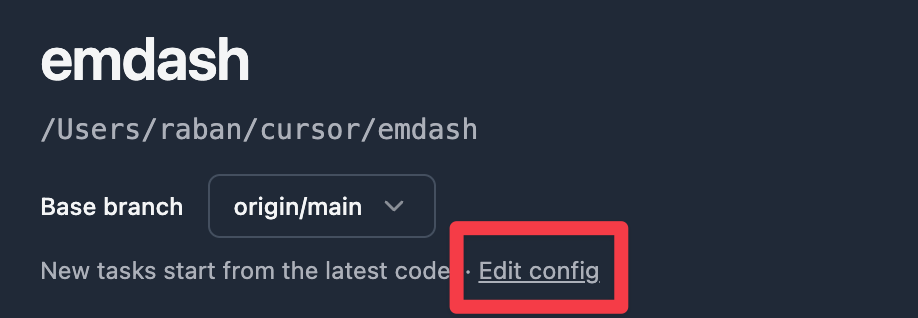
Krabby can be configured per project from the Project config modal (Edit config on the project page). Use it to control what gets copied to worktrees and what scripts run for each task.
Copying files to worktrees
When you create a new task, Krabby sets up a Git worktree so the agent can work in isolation. By default, worktrees start fresh from your repository, which means gitignored files like .env won't be there.
To solve this, Krabby automatically copies certain gitignored files from your main project into each new worktree. This happens once when the worktree is created, and only for files that don't already exist in the destination.
The default patterns cover common environment files:
.env
.env.keys
.env.local
.env.*.local
.envrc
docker-compose.override.yml
These defaults work well for most projects, but you can customize them if needed.
Custom preserve patterns
In Preserved patterns, enter one glob pattern per line.
.env
.env.local
config/local.yml
secrets/*.json
When you define preservePatterns, it replaces the defaults entirely. Include any default patterns you still want alongside your custom ones.
Patterns support basic glob syntax, so secrets/*.json will match all JSON files in the secrets directory. Files inside node_modules, .git, vendor, and other common build directories are automatically excluded regardless of your patterns.
How it works
Krabby looks for gitignored files in your main project that match your preserve patterns. For each match, it copies the file to the same relative path in the new worktree. If a file already exists in the worktree, it's left untouched, so your worktree-specific changes won't be overwritten.
This means you can safely modify environment files in a worktree without worrying about them being reset when you create new tasks.
Script fields
Project config has four script fields:
Setup script: runs once right after task creation (good for installs/bootstrap)Run script: long-running command you start/stop from the task terminal (good for dev servers)Stop script: runs when the run script is stopped, before the process is killed (good for graceful shutdown)Teardown script: runs when a task is deleted or archived
The setup script runs as soon as the worktree is ready, in parallel with the agent.
Task env vars
When a task terminal starts, Krabby injects convenience environment variables you can use inside setup scripts and other terminal commands.
If you run multiple tasks in parallel, do not hardcode localhost:3000. Use KRABBY_PORT so each task gets its own localhost port automatically.
| Variable | Purpose |
|---|---|
KRABBY_TASK_ID | Stable unique task id |
KRABBY_TASK_NAME | Shell-safe task name slug |
KRABBY_TASK_PATH | Absolute task (worktree) path |
KRABBY_ROOT_PATH | Absolute project root path |
KRABBY_DEFAULT_BRANCH | Default branch name (e.g., main) |
KRABBY_PORT | Unique localhost base port per task (use for PORT or --port) |
KRABBY_PORT is different for each task. Example: one task might run on localhost:50120, another on localhost:50730, so they do not collide on localhost:3000.
Avoid localhost port collisions
Use this as your Run script value:
PORT=$KRABBY_PORT pnpm run devIf your dev server expects a --port flag instead of PORT:
pnpm run dev -- --port=$KRABBY_PORTFor multiple local services, use KRABBY_PORT with small offsets:
APP_PORT=$KRABBY_PORT
DB_PORT=$((KRABBY_PORT + 1))
REDIS_PORT=$((KRABBY_PORT + 2))
Example: docker-compose override with task ports
services:
  db:
    ports:
      - '${KRABBY_PORT:-5432}:5432'
  app:
    environment:
      - DATABASE_PORT=${KRABBY_PORT:-5432}
Examples
Node app (recommended):
Setup script:
pnpm installRun script:
PORT=$KRABBY_PORT pnpm run devPython project with virtual environment:
Setup script:
python -m venv .venv && source .venv/bin/activate && pip install -r requirements.txtEditing the config
On the project page, click Edit config, fill the fields, then click Save. Krabby stores these settings in .krabby.json.